> ## Documentation Index
> Fetch the complete documentation index at: https://docs.dittofeed.com/llms.txt
> Use this file to discover all available pages before exploring further.
# Email Template Editor
Dittofeed provides two forms of email template editing:
1. A notion like low-code editor that makes it easy to compose primarily text-based emails.
2. A code-based editor that supports Liquid, HTML, and MJML.
## Low-code Editor
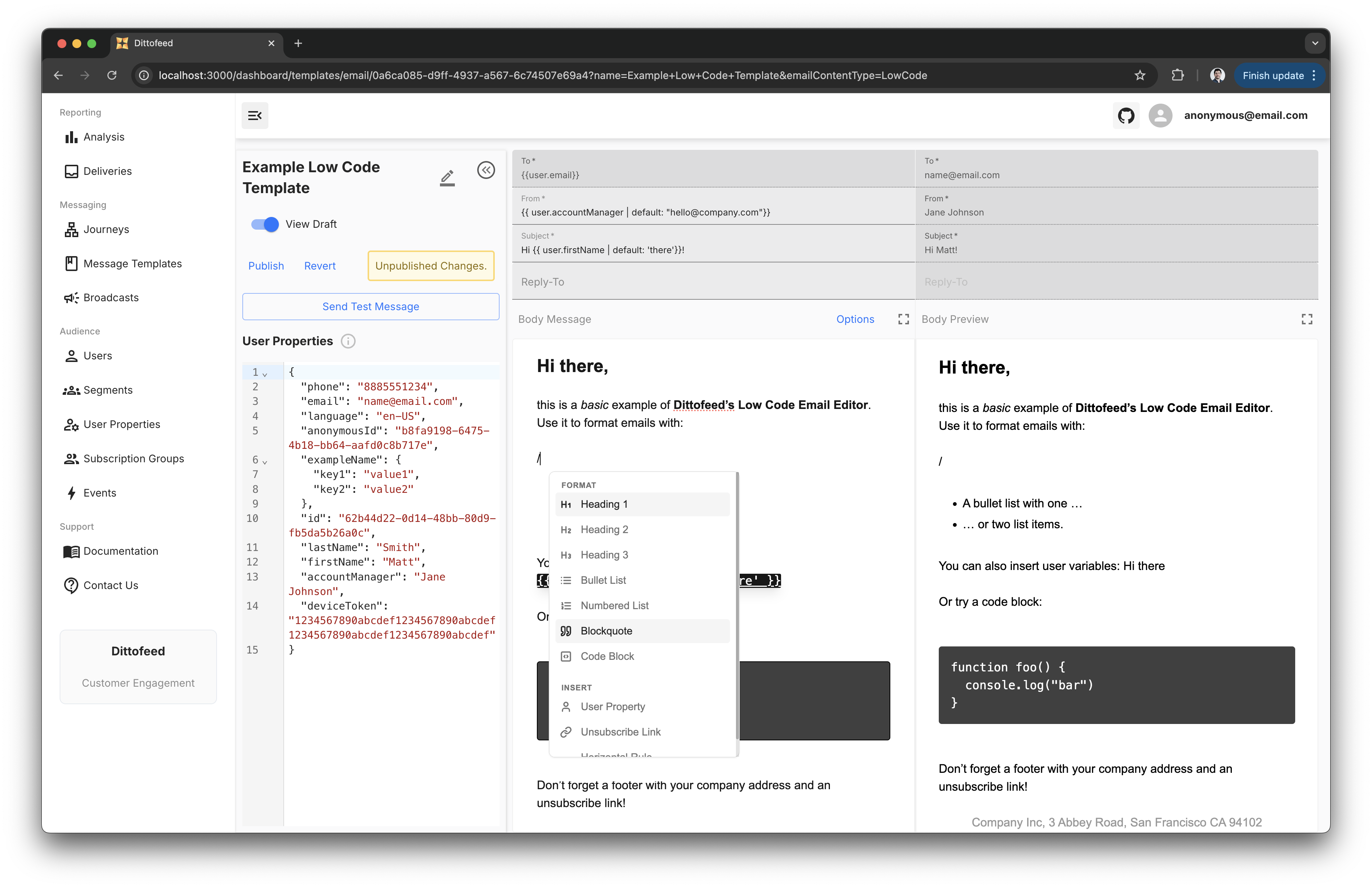
The low-code editor provides a notion-like interface for composing lightly styled emails. Blocks are inserted into the template by typing the `/` key and selecting the desired block from the list of suggestions.
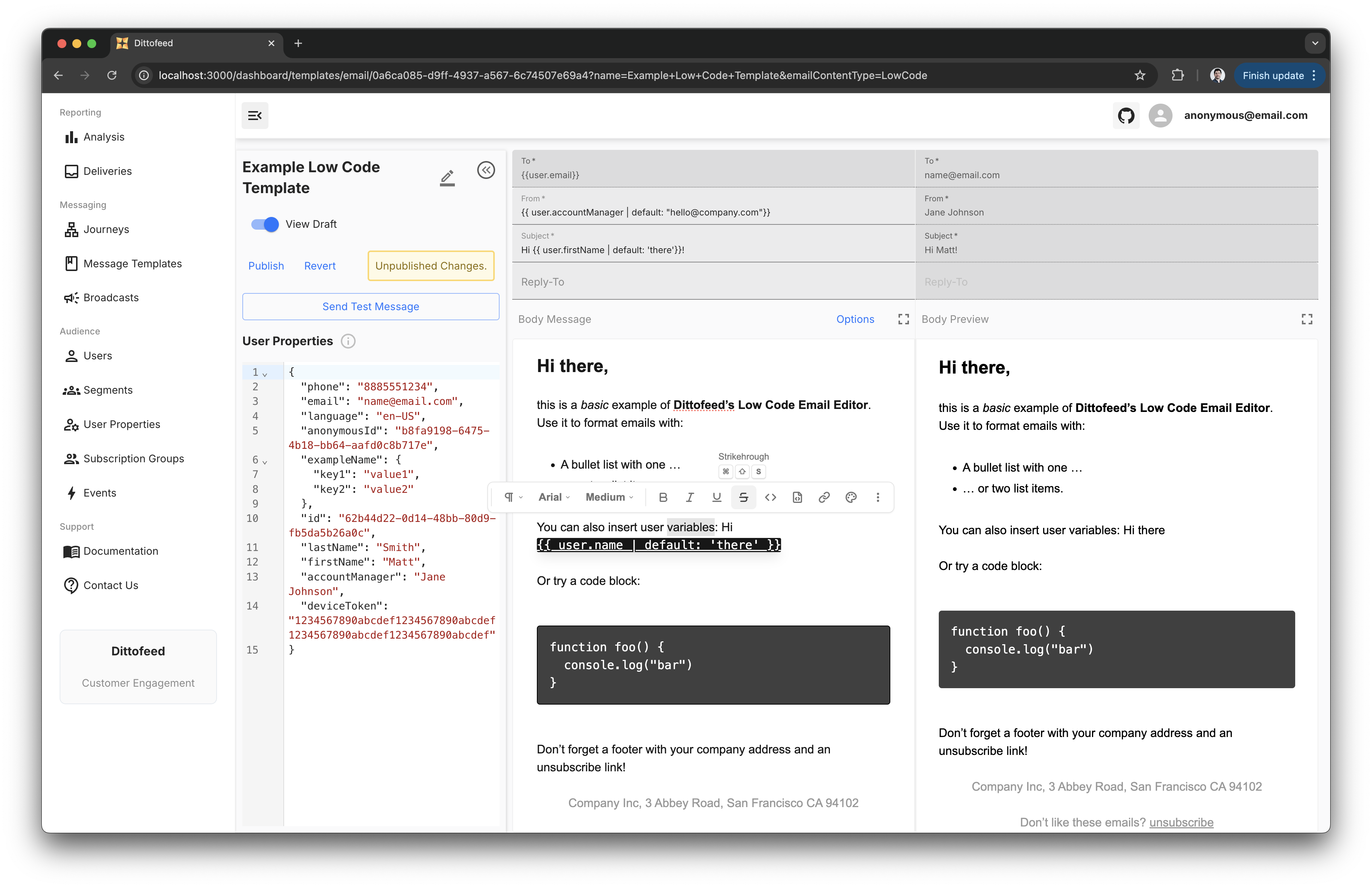
Text can be formatted by highlighting the text and selecting the desired formatting options from the toolbar that appears.
## Code-based Editor
The code-based email editor supports [Liquid syntax](https://liquidjs.com/tutorials/intro-to-liquid.html), HTML, and [MJML](https://mjml.io/). Learn more about coding responsive emails in MJML in [the next section](/resources/templates/mjml).
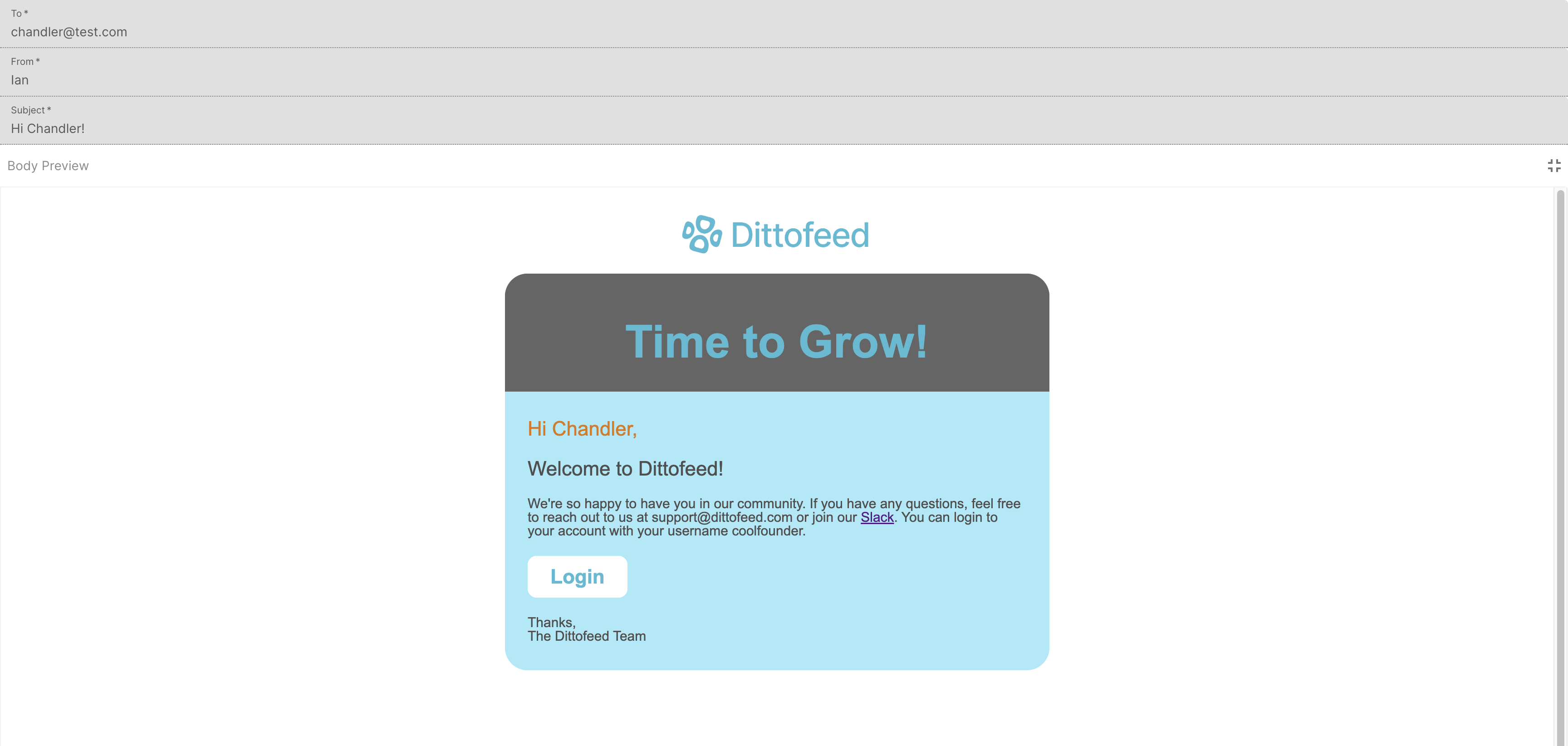
An example of a rendered "welcome email" template using MJML and Liquid:
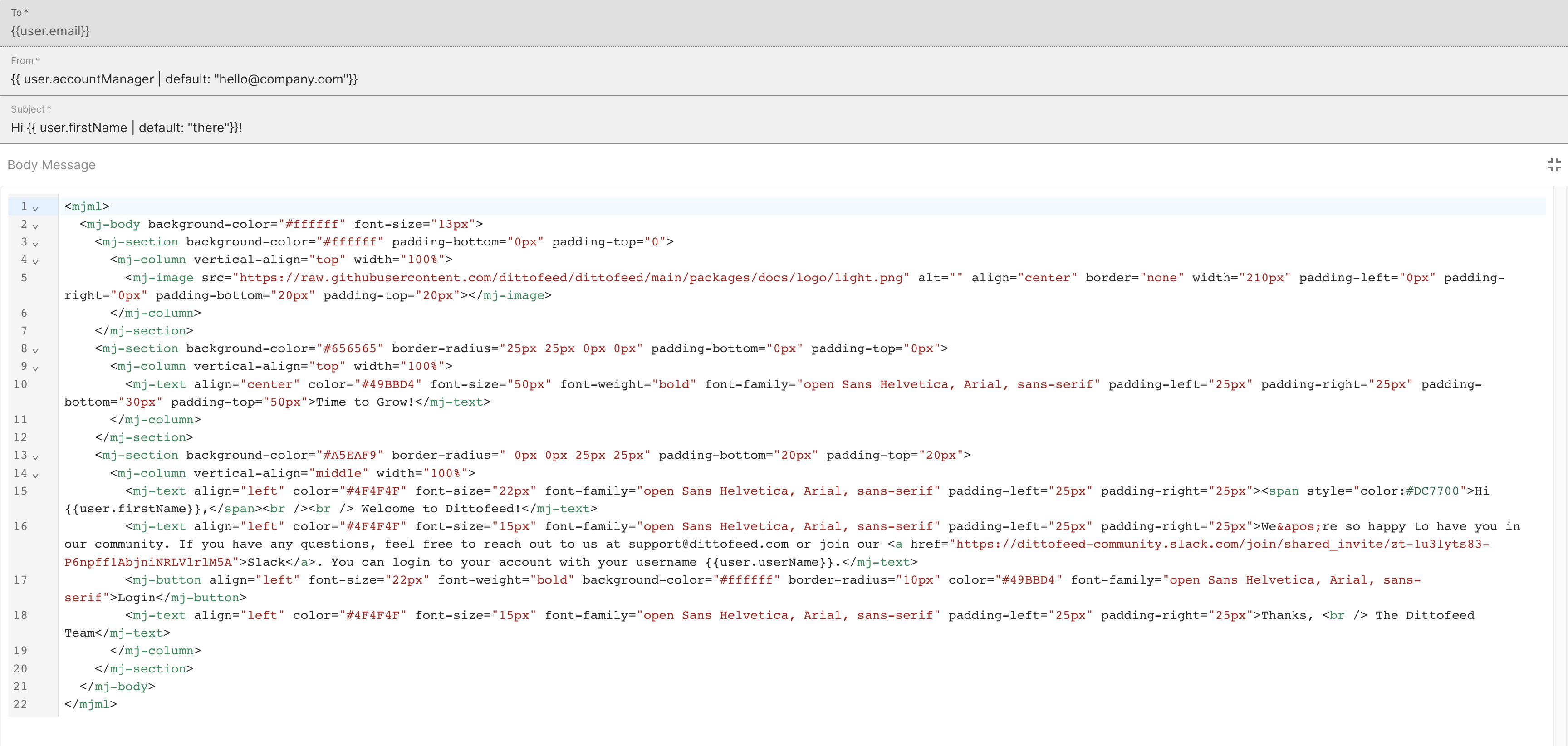
A view of the dashboard editor with the template code:
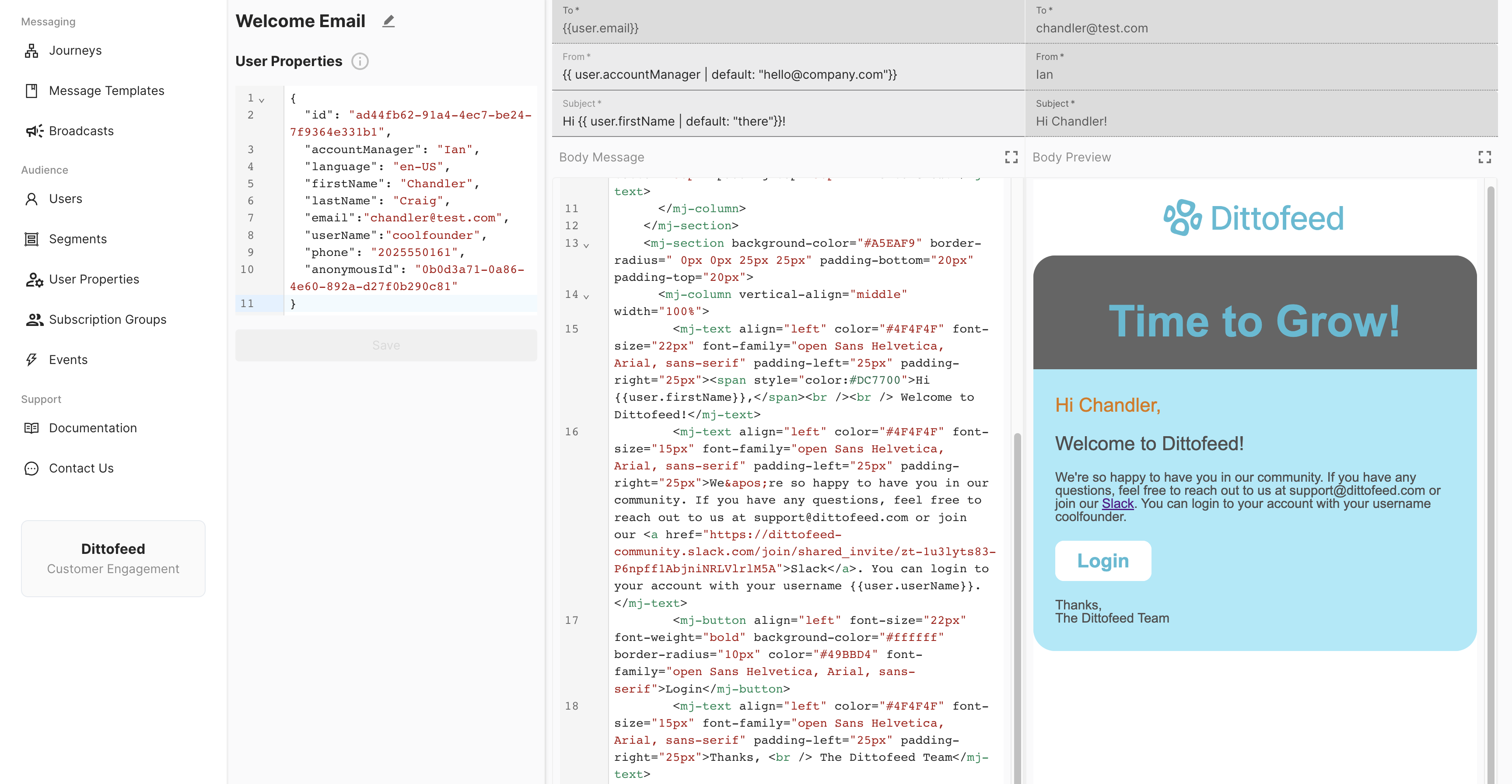
A full view of your user properties, editor, and a rendered email preview:
## Sending Email Attachments
Dittofeed supports sending email attachments.
When possible, you should link to files using a URL rather than sending them as attachments. Email attachments can have a substantial negative impact on emails' deliverability.
* Email providers often send emails with attachments to spam.
* Email attachments are often used by malicious actors to distribute malware.
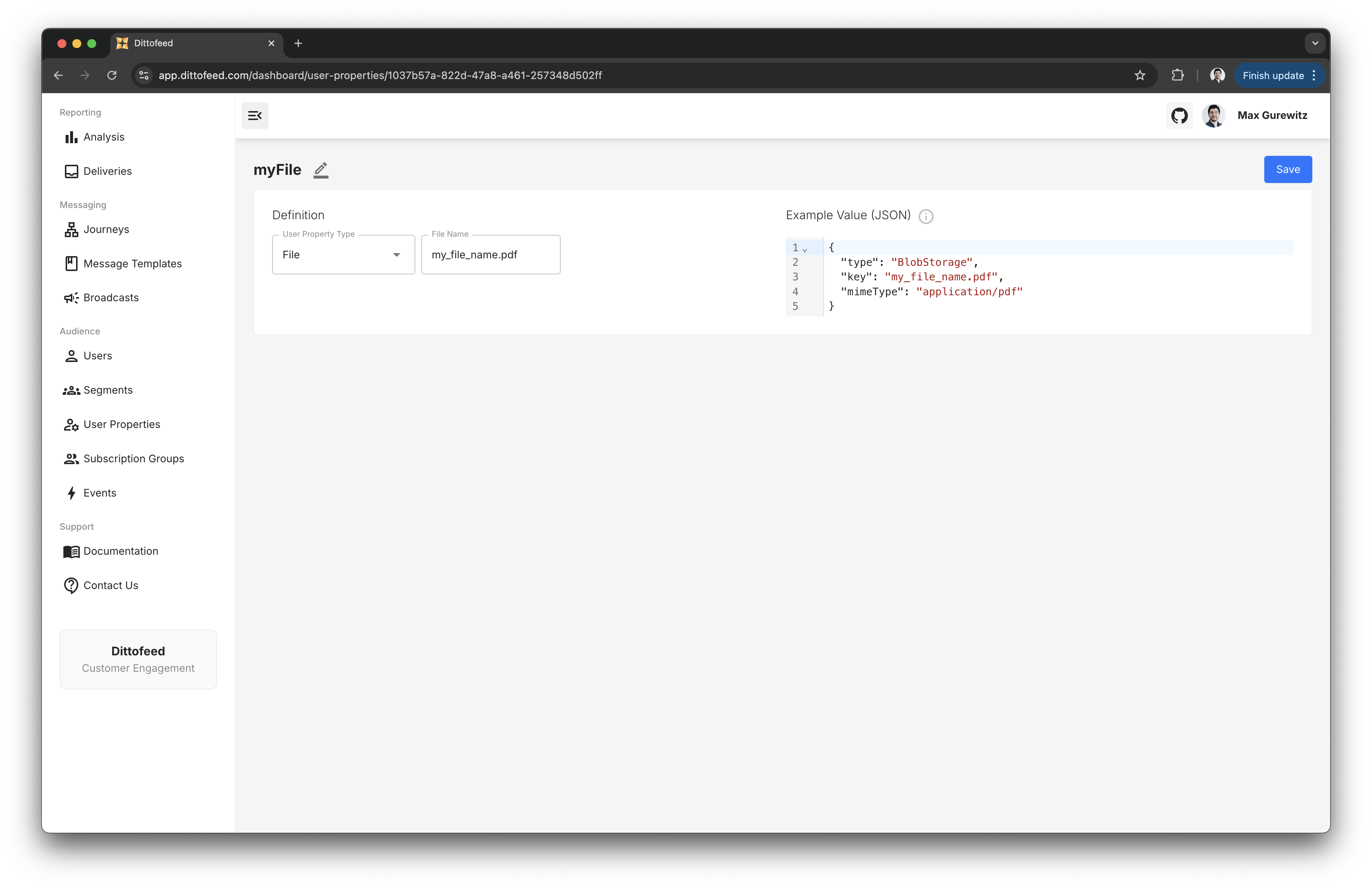
Sending email attachments requires using `File` [type user properties](/resources/user-property-types/file). First, create a user property that will capture the file you're interested in sending.
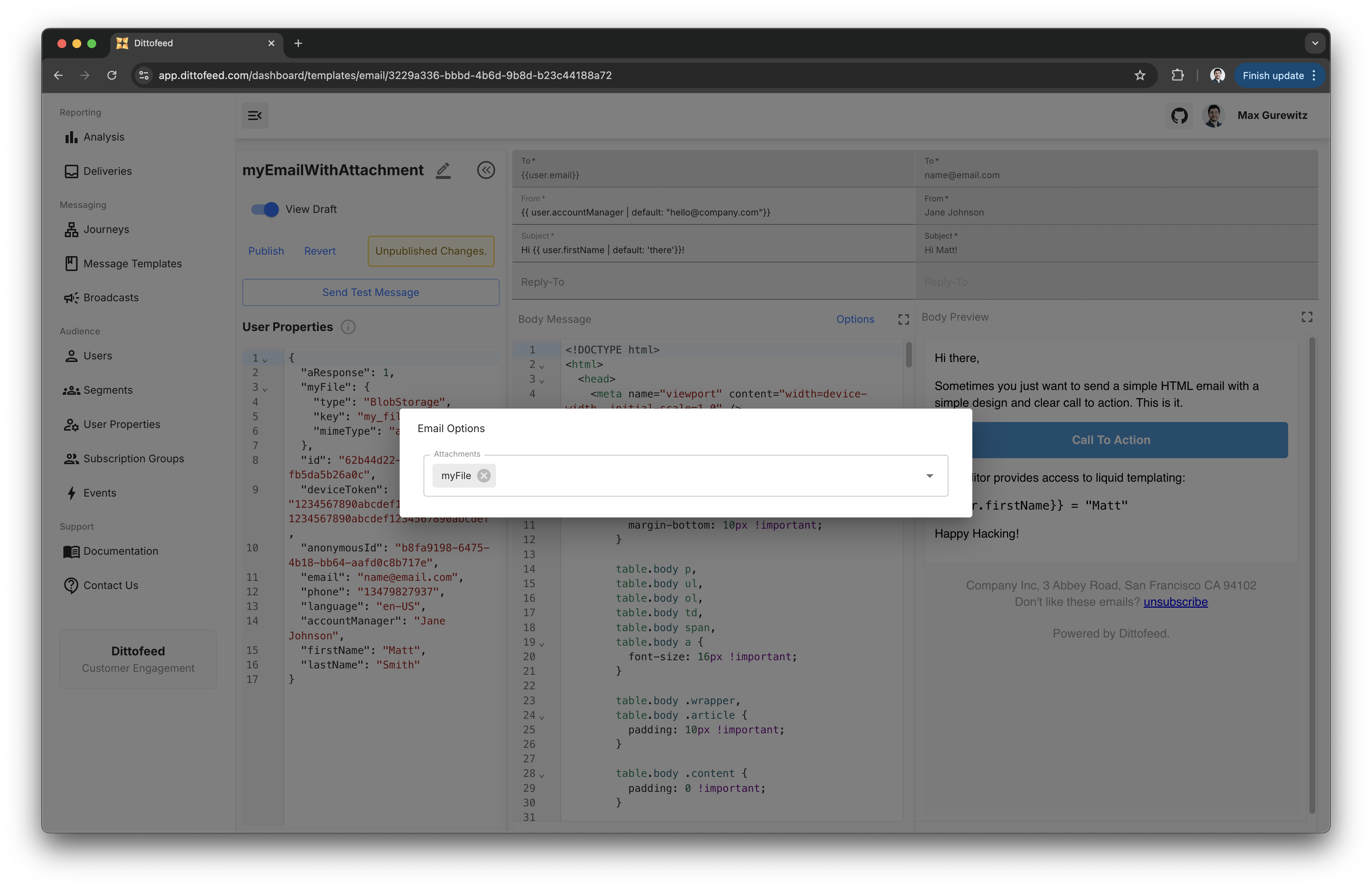
Then, include a reference to this file in your template, by clicking on "Options".
Finally, send a track event with the files you'd like to attach.
```json theme={null}
{
"type": "track",
"files": [
{
"type": "Base64Encoded",
"name": "my_file_name.pdf",
"mimeType": "application/pdf",
"data": "base64-encoded-file-data"
}
],
"properties": {
...
},
...
}
```
***
## Custom Recipient Property
By default, emails are sent to the user's `email` property. You can override this by selecting a different user property in the template's "Recipient User Property" setting, accessible via the "Options" button.
This is useful for:
* **Alternative contact methods**: Send to a user's work email instead of personal email
* **Third-party notifications**: Send to a user's manager, support agent, or parent
See [Custom Recipient Properties](/guide/custom-recipient-properties) for detailed configuration and important notes about unsubscribe links.
***
## Low-code Email Editor Tutorial Video
 Text can be formatted by highlighting the text and selecting the desired formatting options from the toolbar that appears.
 ## Code-based Editor
The code-based email editor supports [Liquid syntax](https://liquidjs.com/tutorials/intro-to-liquid.html), HTML, and [MJML](https://mjml.io/). Learn more about coding responsive emails in MJML in [the next section](/resources/templates/mjml).
An example of a rendered "welcome email" template using MJML and Liquid:
## Code-based Editor
The code-based email editor supports [Liquid syntax](https://liquidjs.com/tutorials/intro-to-liquid.html), HTML, and [MJML](https://mjml.io/). Learn more about coding responsive emails in MJML in [the next section](/resources/templates/mjml).
An example of a rendered "welcome email" template using MJML and Liquid:
 A view of the dashboard editor with the template code:
 A full view of your user properties, editor, and a rendered email preview:
 ## Sending Email Attachments
Dittofeed supports sending email attachments.
## Sending Email Attachments
Dittofeed supports sending email attachments.
 Then, include a reference to this file in your template, by clicking on "Options".
 Finally, send a track event with the files you'd like to attach.
```json theme={null}
{
"type": "track",
"files": [
{
"type": "Base64Encoded",
"name": "my_file_name.pdf",
"mimeType": "application/pdf",
"data": "base64-encoded-file-data"
}
],
"properties": {
...
},
...
}
```
***
## Custom Recipient Property
By default, emails are sent to the user's `email` property. You can override this by selecting a different user property in the template's "Recipient User Property" setting, accessible via the "Options" button.
This is useful for:
* **Alternative contact methods**: Send to a user's work email instead of personal email
* **Third-party notifications**: Send to a user's manager, support agent, or parent
See [Custom Recipient Properties](/guide/custom-recipient-properties) for detailed configuration and important notes about unsubscribe links.
***
## Low-code Email Editor Tutorial Video
Finally, send a track event with the files you'd like to attach.
```json theme={null}
{
"type": "track",
"files": [
{
"type": "Base64Encoded",
"name": "my_file_name.pdf",
"mimeType": "application/pdf",
"data": "base64-encoded-file-data"
}
],
"properties": {
...
},
...
}
```
***
## Custom Recipient Property
By default, emails are sent to the user's `email` property. You can override this by selecting a different user property in the template's "Recipient User Property" setting, accessible via the "Options" button.
This is useful for:
* **Alternative contact methods**: Send to a user's work email instead of personal email
* **Third-party notifications**: Send to a user's manager, support agent, or parent
See [Custom Recipient Properties](/guide/custom-recipient-properties) for detailed configuration and important notes about unsubscribe links.
***
## Low-code Email Editor Tutorial Video