> ## Documentation Index
> Fetch the complete documentation index at: https://docs.dittofeed.com/llms.txt
> Use this file to discover all available pages before exploring further.
# SendGrid Integration
Dittofeed can integrate with SendGrid to send emails.
## Integration Instructions
Visit the SendGrid API Keys page [https://app.sendgrid.com/settings/api\_keys](https://app.sendgrid.com/settings/api_keys).
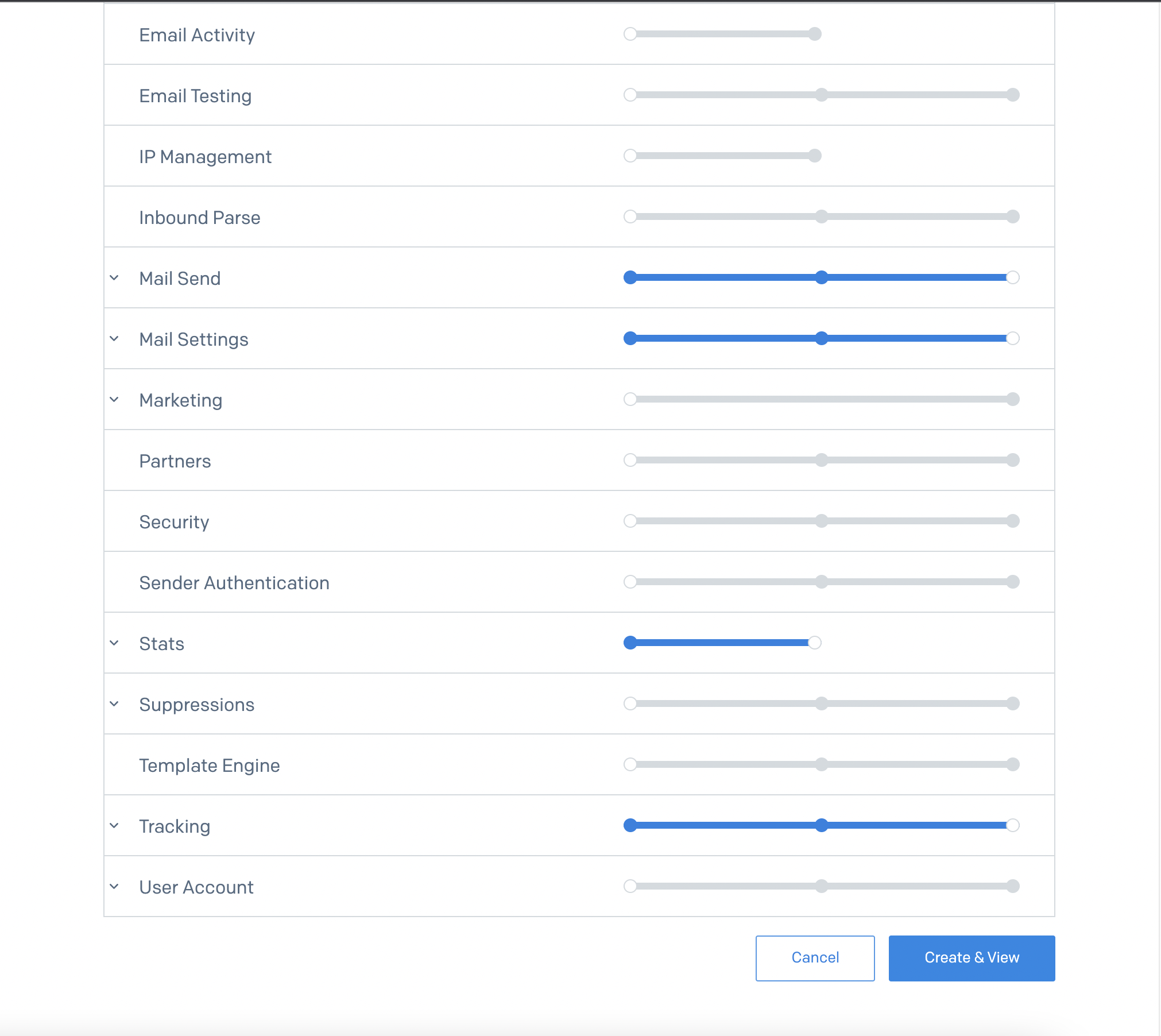
Click "Create API Key", then select "Restricted Access". Grant "Full Access" in the following categories.
* Mail Send
* Mail settings
* Tracking
Then grant "Read Access" in the following categories.
* Stats
Click "Create & View". You will then be directed to a page containing your API key.
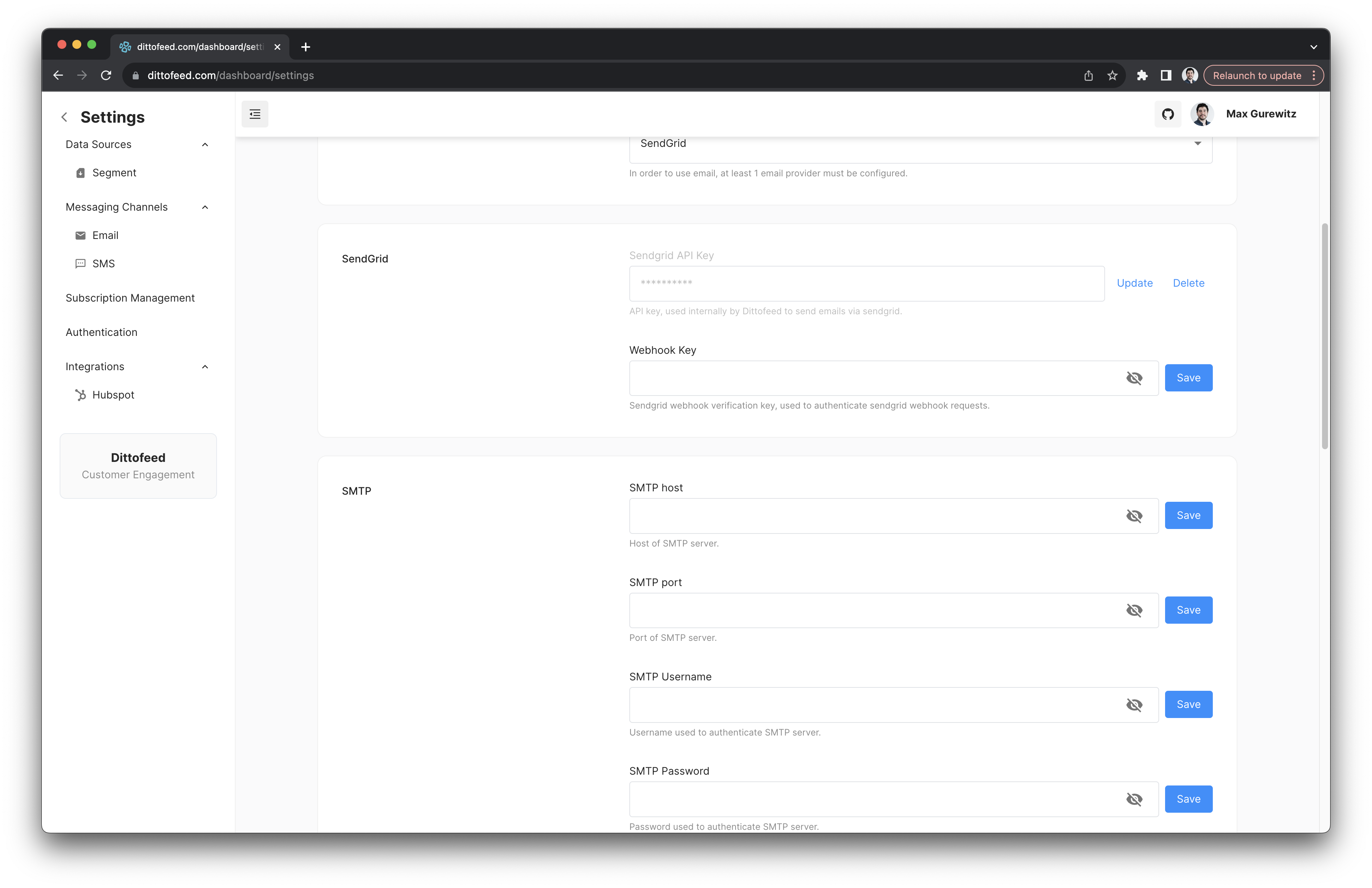
Add that same API key to Dittofeed on the settings page `/dashboard/settings#email-channel`.
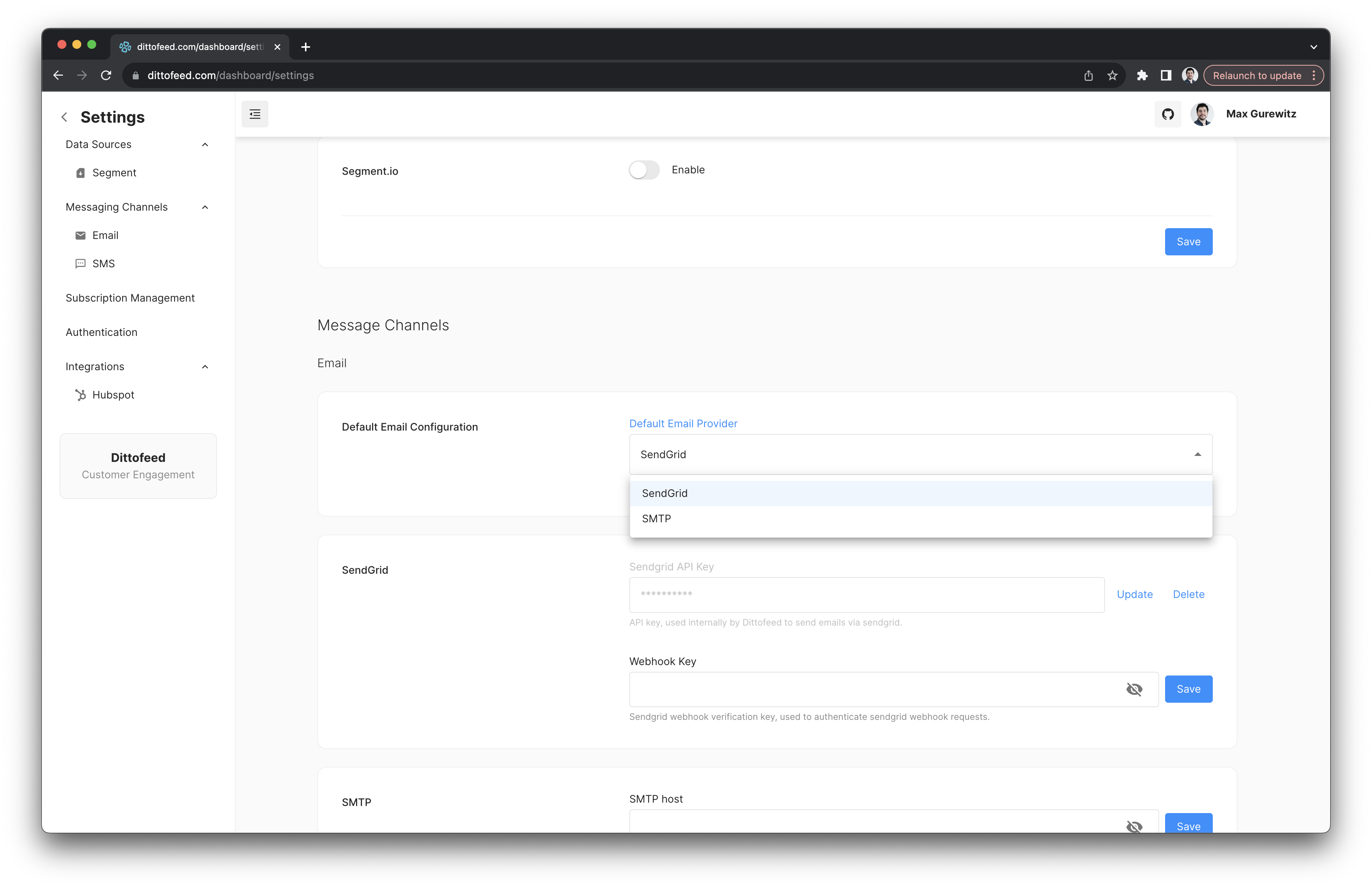
Finally, select SendGrid as your default email provider.
That's it! At this point you should be able send emails with Dittofeed and SendGrid.
## Tracking
In order to receive sendgrid tracking data, you have to create a webhook in SendGrid.
Go to the Webhook settings page. [https://app.sendgrid.com/settings/mail\_settings/webhook\_settings](https://app.sendgrid.com/settings/mail_settings/webhook_settings)
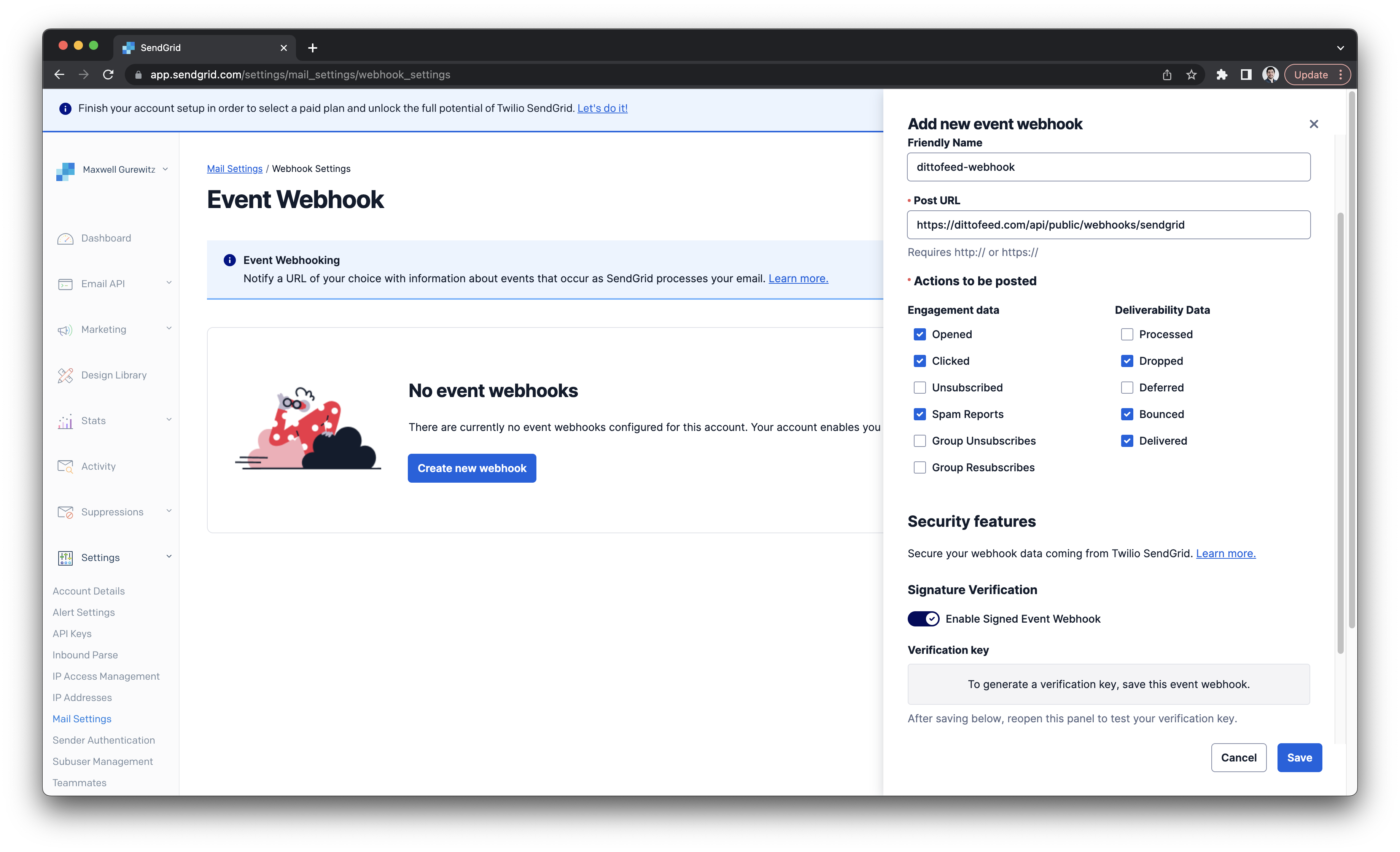
Create a new webhook with the following actions to be posted.
* Opened
* Clicked
* Spam Reports
* Dropped
* Bounced
* Delivered
* Processed
With the Post URL `https://app.dittofeed.com/api/public/webhooks/sendgrid` or your own custom domain if you're self-hosting.
Enable the "Signature Verification" feature. Save the webhook.
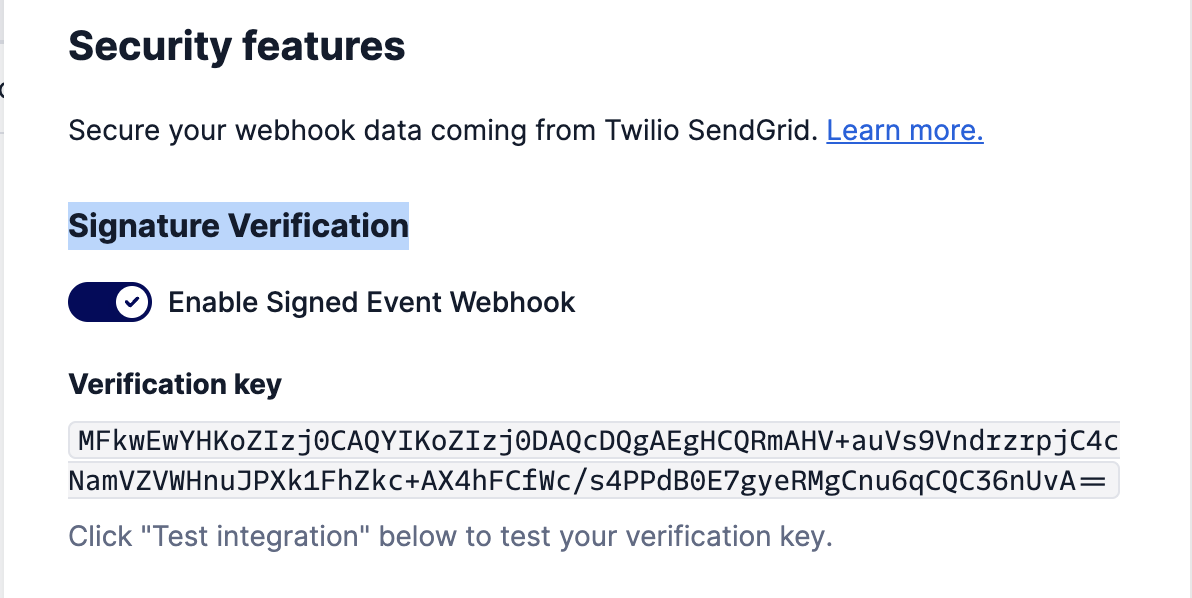
Now, re-open the webhook's settings. You should see your "Verification Key".
Copy that key and paste it into Dittofeed's settings page in the "Webhook Key" field `/dashboard/settings#email-title` and click save.
Here's a video showing the full setup.
 Click "Create & View". You will then be directed to a page containing your API key.
Add that same API key to Dittofeed on the settings page `/dashboard/settings#email-channel`.
Click "Create & View". You will then be directed to a page containing your API key.
Add that same API key to Dittofeed on the settings page `/dashboard/settings#email-channel`.
 Finally, select SendGrid as your default email provider.
 That's it! At this point you should be able send emails with Dittofeed and SendGrid.
## Tracking
In order to receive sendgrid tracking data, you have to create a webhook in SendGrid.
Go to the Webhook settings page. [https://app.sendgrid.com/settings/mail\_settings/webhook\_settings](https://app.sendgrid.com/settings/mail_settings/webhook_settings)
That's it! At this point you should be able send emails with Dittofeed and SendGrid.
## Tracking
In order to receive sendgrid tracking data, you have to create a webhook in SendGrid.
Go to the Webhook settings page. [https://app.sendgrid.com/settings/mail\_settings/webhook\_settings](https://app.sendgrid.com/settings/mail_settings/webhook_settings)
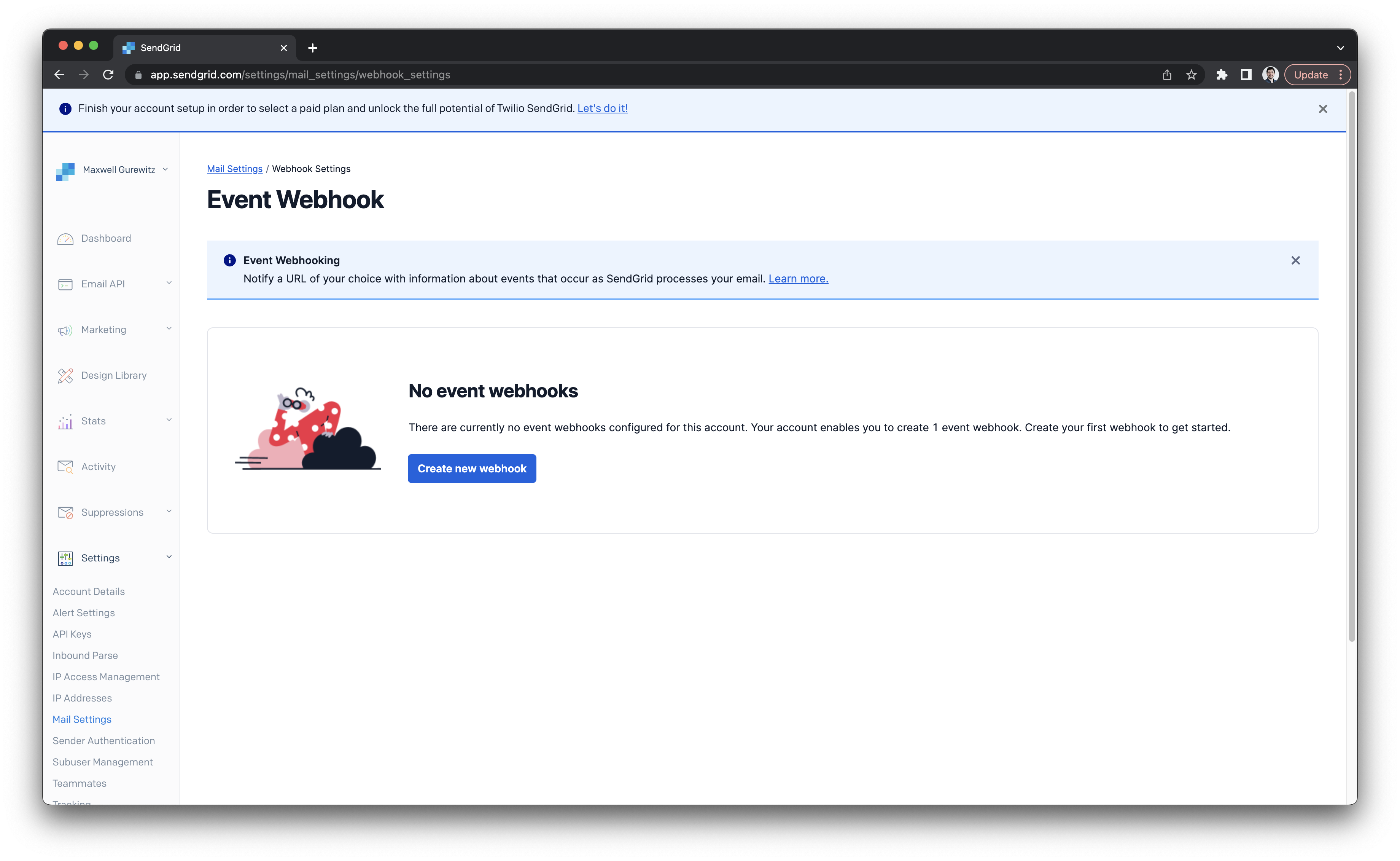 Create a new webhook with the following actions to be posted.
* Opened
* Clicked
* Spam Reports
* Dropped
* Bounced
* Delivered
* Processed
With the Post URL `https://app.dittofeed.com/api/public/webhooks/sendgrid` or your own custom domain if you're self-hosting.
Enable the "Signature Verification" feature. Save the webhook.
Create a new webhook with the following actions to be posted.
* Opened
* Clicked
* Spam Reports
* Dropped
* Bounced
* Delivered
* Processed
With the Post URL `https://app.dittofeed.com/api/public/webhooks/sendgrid` or your own custom domain if you're self-hosting.
Enable the "Signature Verification" feature. Save the webhook.
 Now, re-open the webhook's settings. You should see your "Verification Key".
 Copy that key and paste it into Dittofeed's settings page in the "Webhook Key" field `/dashboard/settings#email-title` and click save.