> ## Documentation Index
> Fetch the complete documentation index at: https://docs.dittofeed.com/llms.txt
> Use this file to discover all available pages before exploring further.
# Appointment Reminders
> Example journey for sending appointment reminders to users.
This guide walks through an example journey for sending appointment reminders to users. This guide highlights the use of [Event Entry Journeys](/resources/journey-nodes/entry#event-entry), [Keyed Performed Segments](/resources/segment-nodes/keyed-performed), and [Keyed Performed User Properties](/resources/user-property-types/keyed-performed).
This journey will perform the following steps:
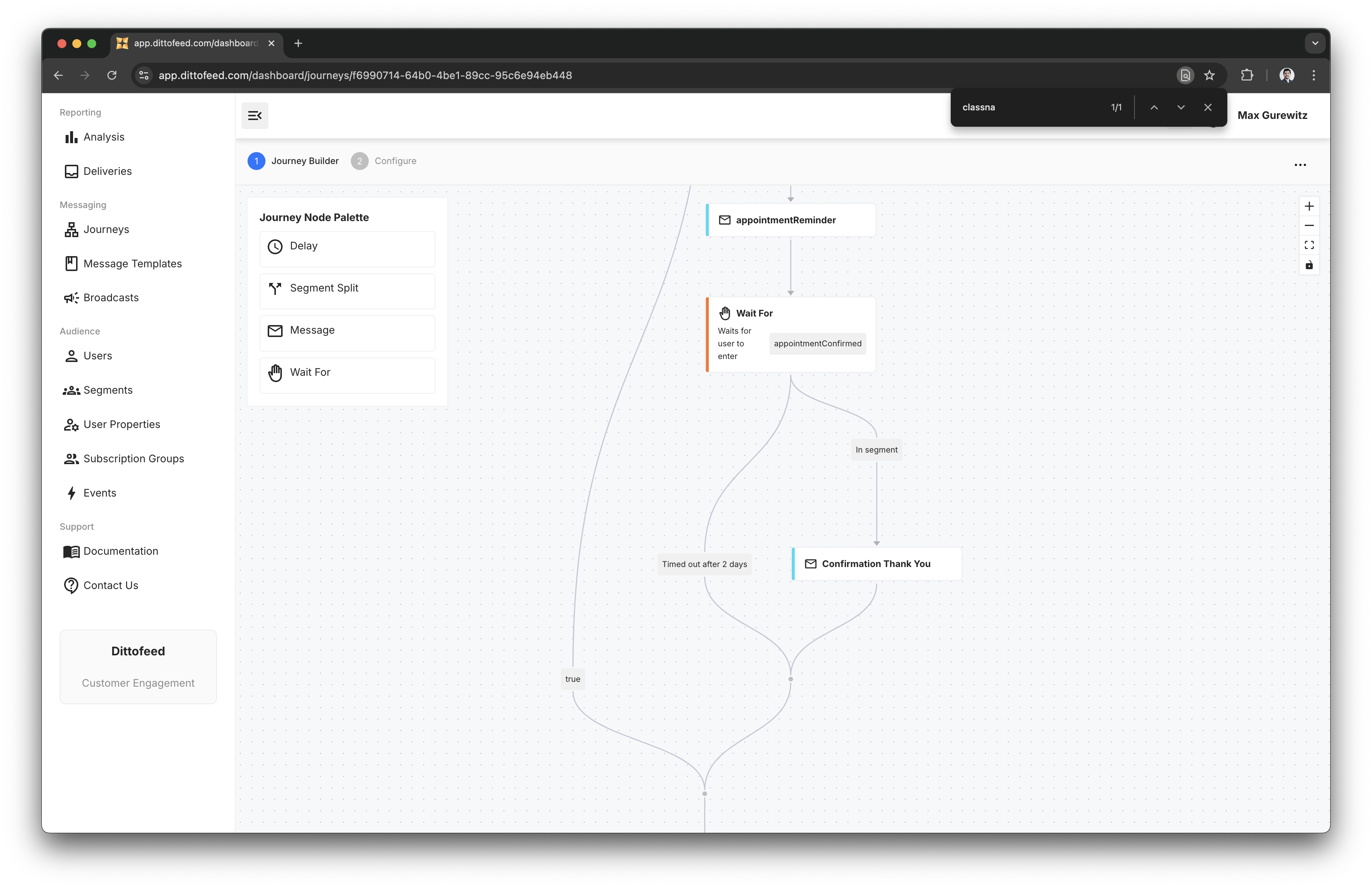
1. Wait until 1 day before the appointment time.
2. Check if the user has cancelled their appointment.
3. If the appointment has not been cancelled, send an appointment reminder.
4. Wait for the user to confirm that they have attended the appointment.
5. Send a thank you message to the user.
## Creating the Journey
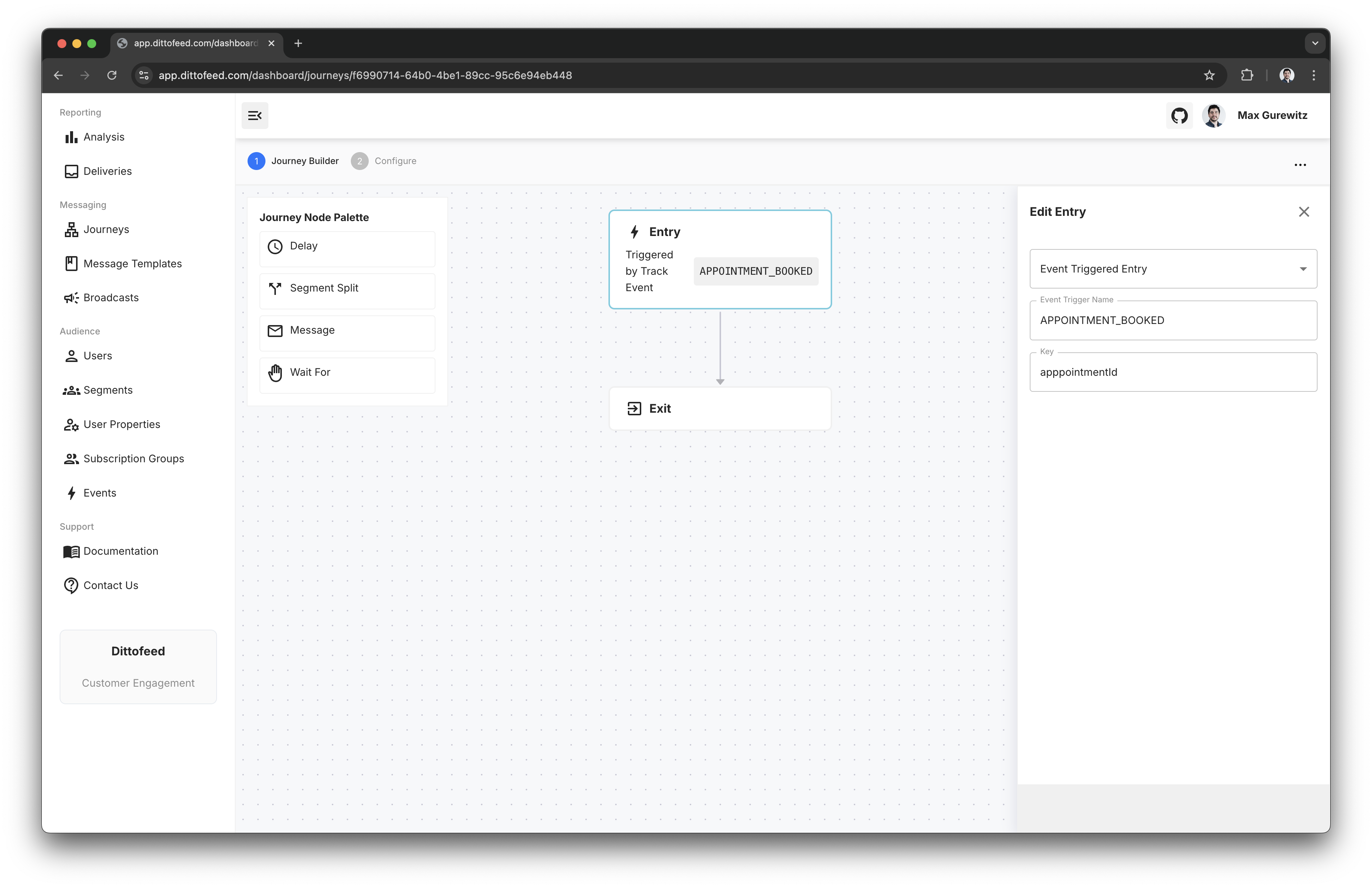
First, we'll create a new event entry journey, listening for the `APPOINTMENT_BOOKED` event, keyed on the `appointmentId` property.
```json theme={null}
{
"event": "APPOINTMENT_BOOKED",
"type": "track",
"properties": {
"appointmentId": "123",
"className": "Yoga",
"appointmentTime": "2024-12-01T10:00:00Z"
},
...
}
```
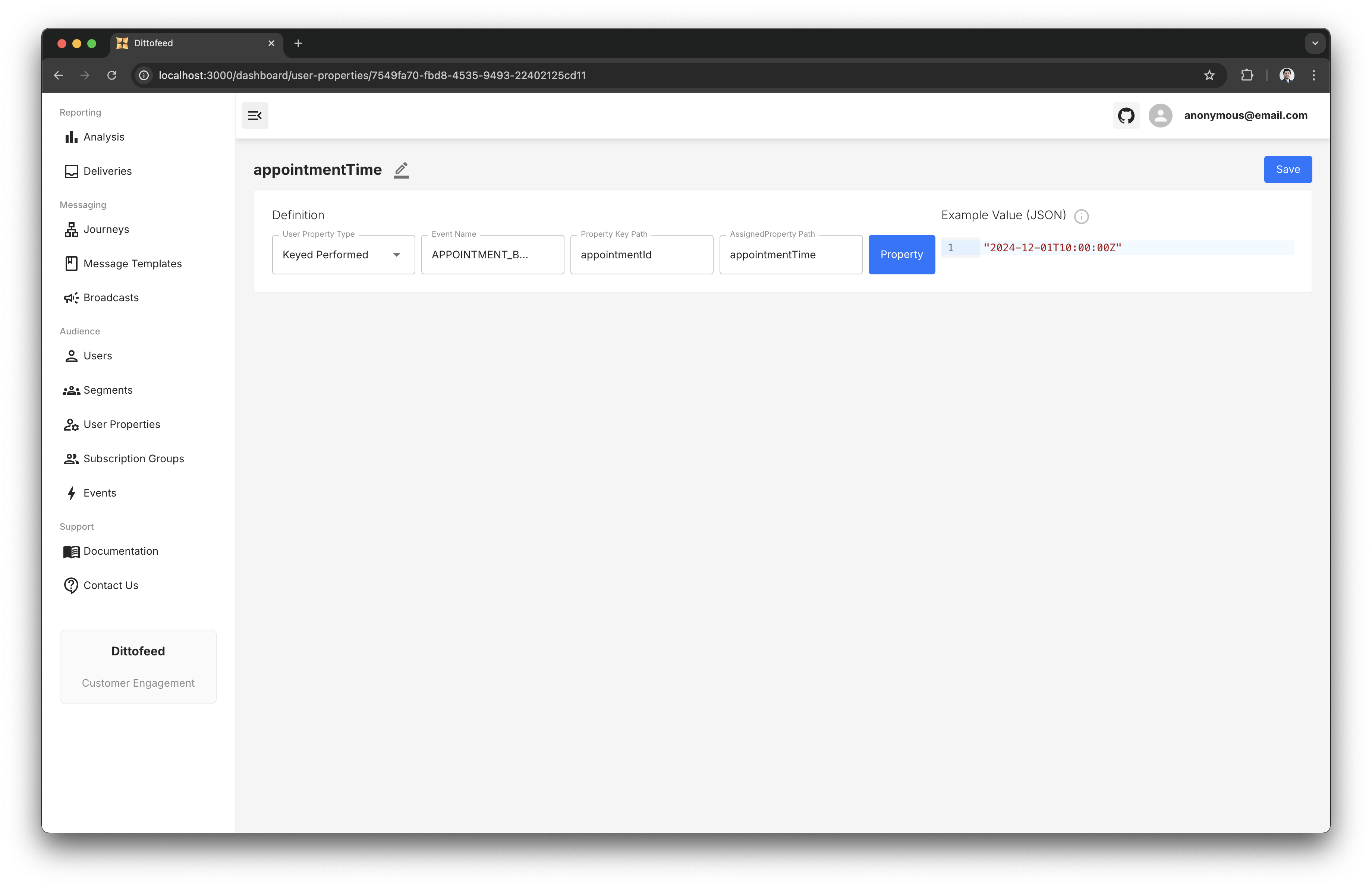
 Then, we'll create a new user property, on that same `APPOINTMENT_BOOKED` event, with the same `appointmentId` key, but rendering the appointment time as the value.
 Then we'll create a delay node, using the [user property variant](/resources/journey-nodes/delay#user-property-delay), with the user property being the `appointmentTime` user property we just created. We'll set an offset of 1 day prior to the appointment time.
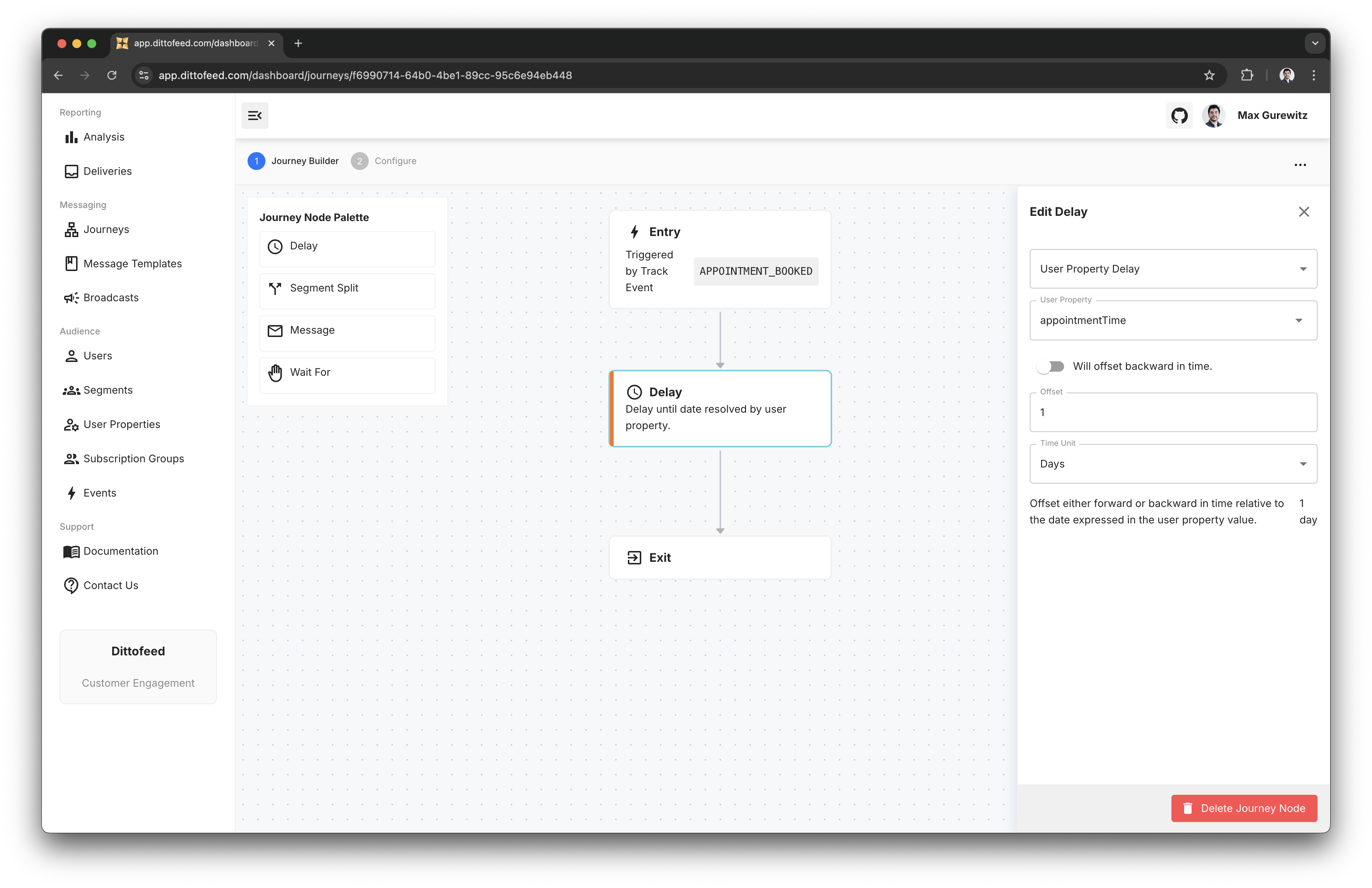 Note, that because both the event entry node and the user property node have the same `appointmentId` key, we can be sure that the user property will wait on the same `appointmentTime` specified in the trigger event, as opposed to any other concurrent `APPOINTMENT_BOOKED` events.
Next, we'll create a segment which looks for `APPOINTMENT_CANCELLED` events, keyed on the `appointmentId` property.
```json theme={null}
{
"event": "APPOINTMENT_CANCELLED",
"properties": {
"appointmentId": "123"
},
...
}
```
Similarly, because the `appointmentCancelled` segment and our journey are both keyed on the `appointmentId` property, the segment will wait on a cancellation event that corresponds to the same appointment booking used to trigger the journey.
Note, that because both the event entry node and the user property node have the same `appointmentId` key, we can be sure that the user property will wait on the same `appointmentTime` specified in the trigger event, as opposed to any other concurrent `APPOINTMENT_BOOKED` events.
Next, we'll create a segment which looks for `APPOINTMENT_CANCELLED` events, keyed on the `appointmentId` property.
```json theme={null}
{
"event": "APPOINTMENT_CANCELLED",
"properties": {
"appointmentId": "123"
},
...
}
```
Similarly, because the `appointmentCancelled` segment and our journey are both keyed on the `appointmentId` property, the segment will wait on a cancellation event that corresponds to the same appointment booking used to trigger the journey.
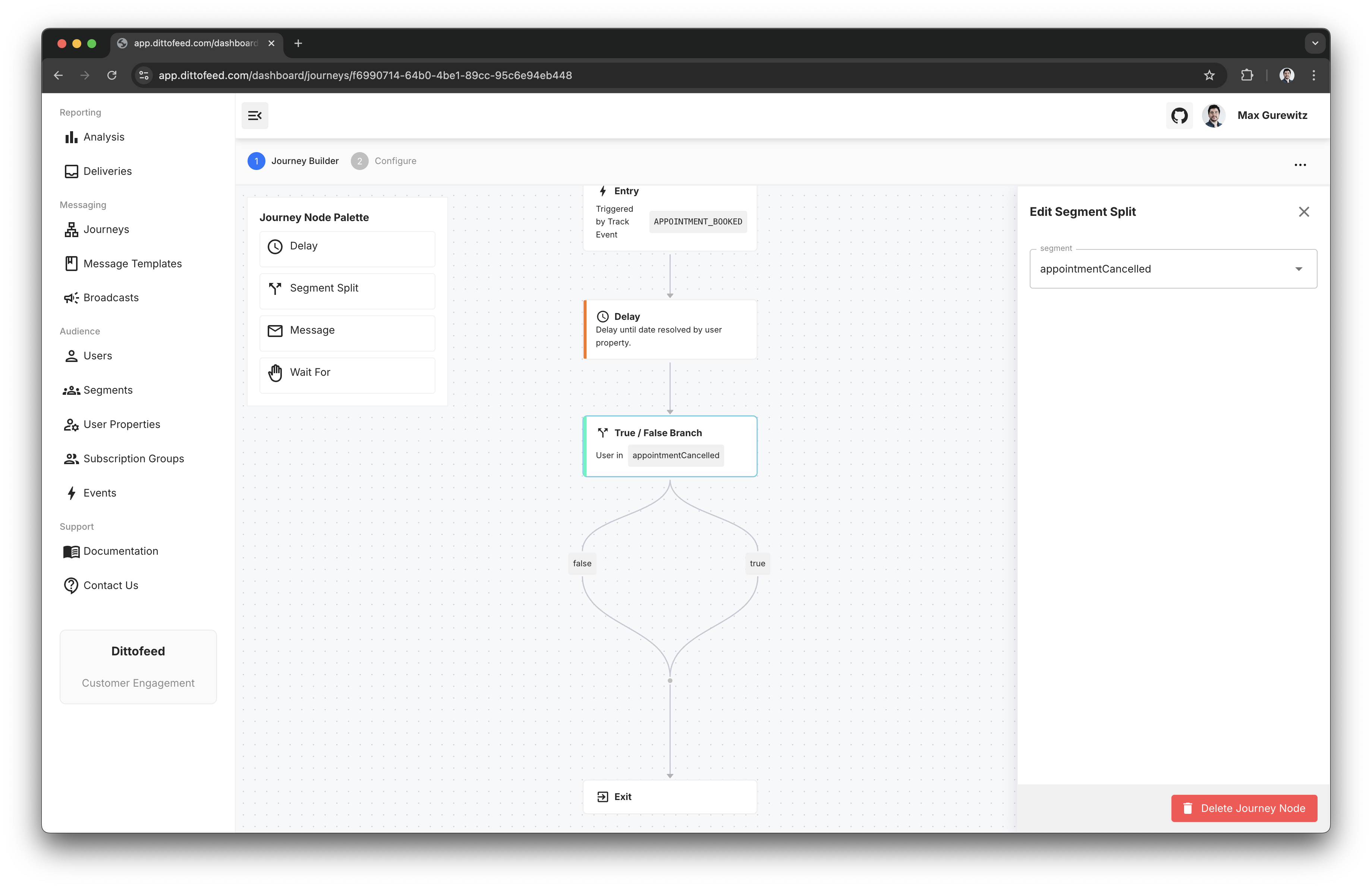
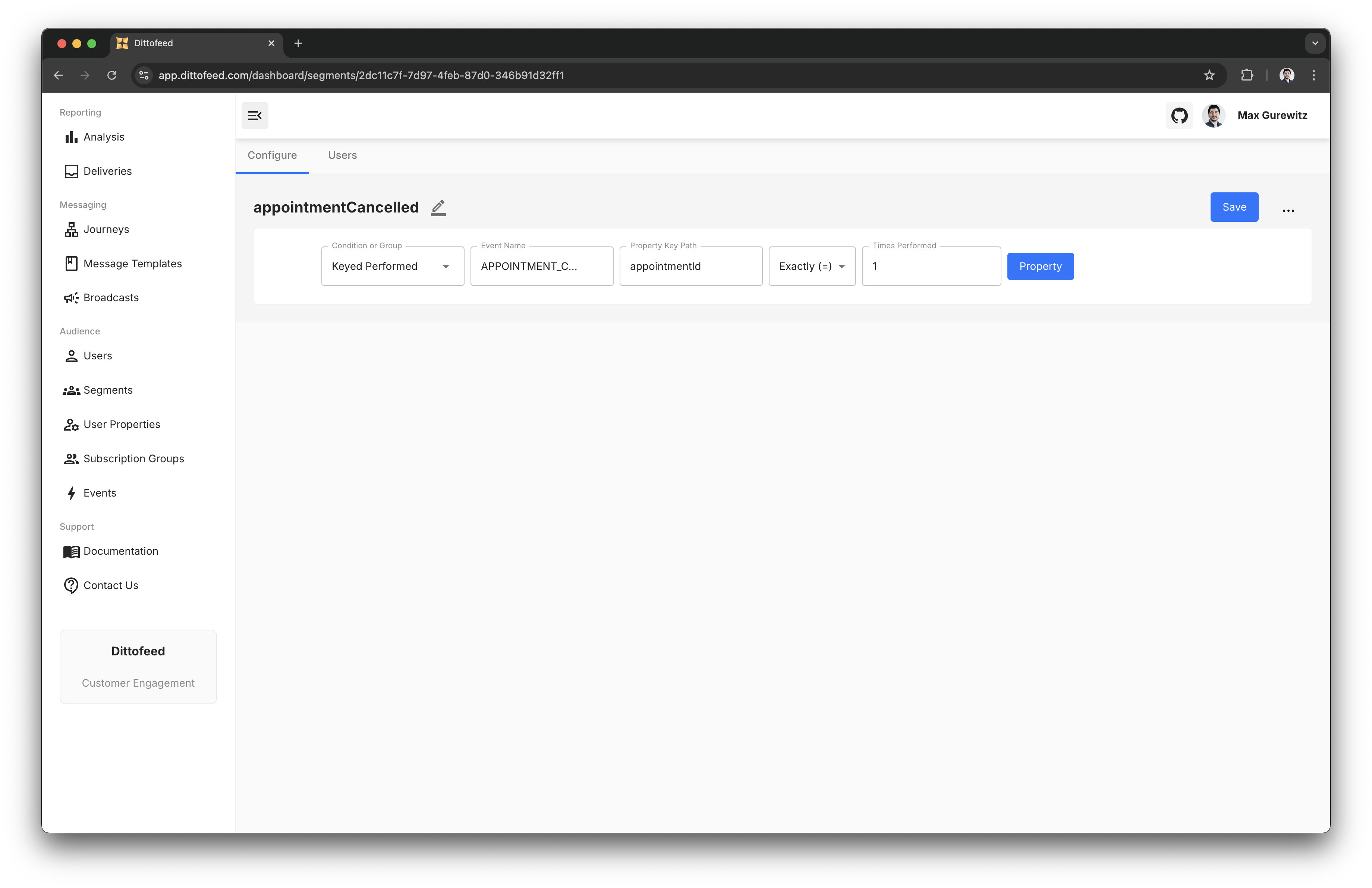 Then we'll use this segment to create a segment split, to check if the appointment has been cancelled.
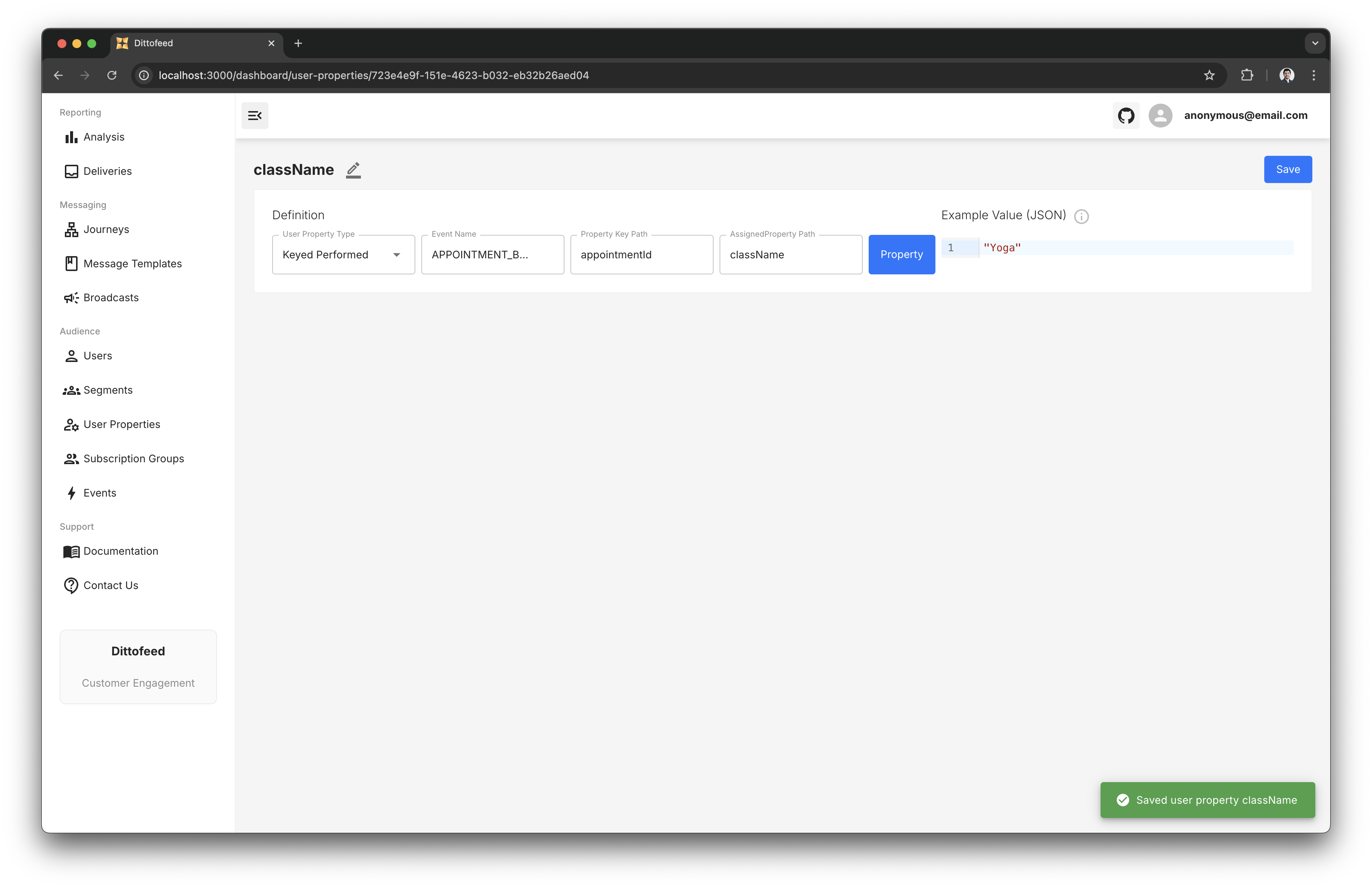
 Next, we'll create a user property for rendering the class name in the message.
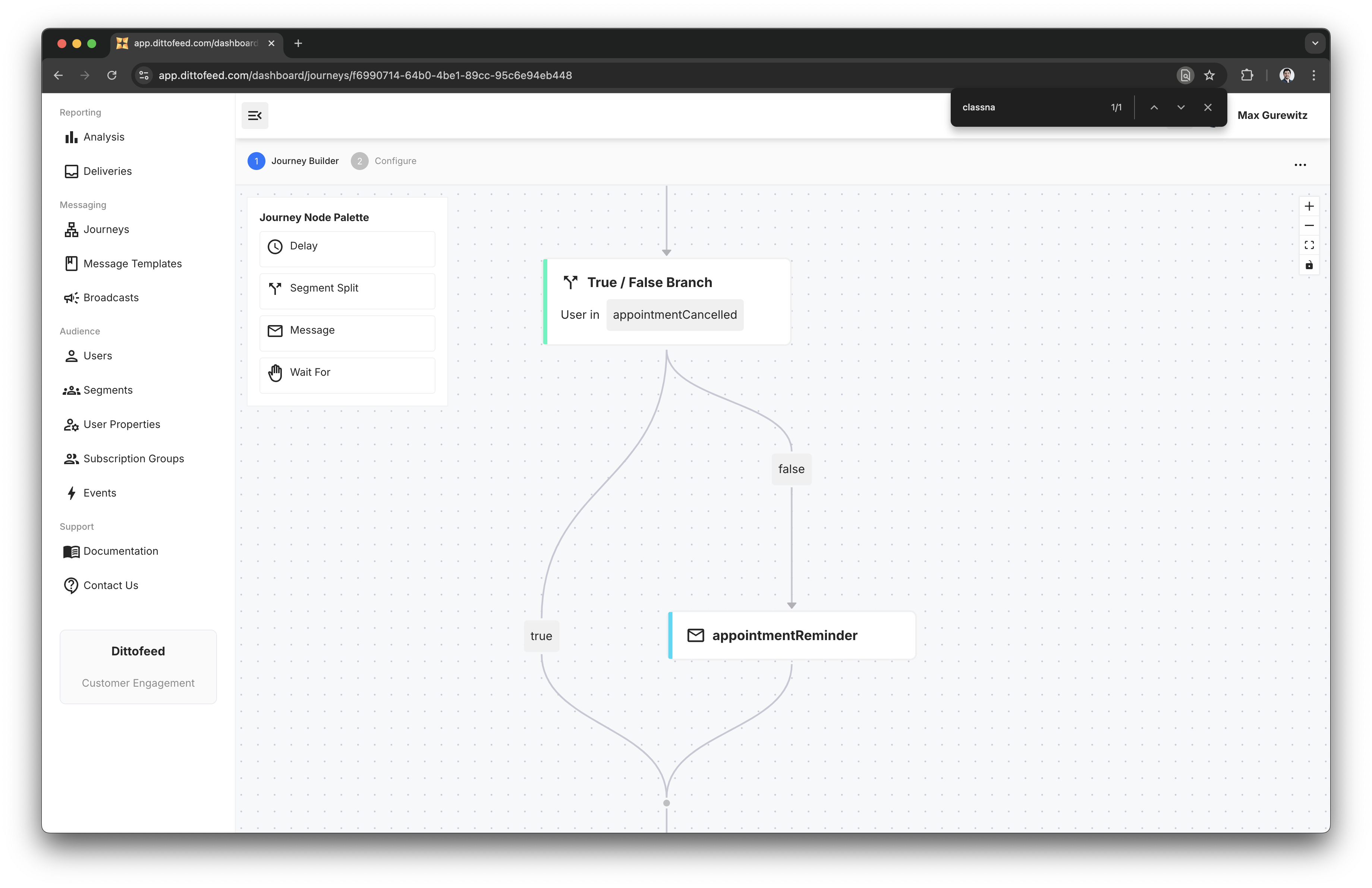
 Then, we'll create a message node to send an appointment reminder, with the message template using the class name user property.
 We'll now need to create a segment to check if the user has confirmed that they have attended the appointment.
```json theme={null}
{
"event": "APPOINTMENT_CONFIRMED",
"properties": {
"appointmentId": "123"
},
...
}
```
We'll now need to create a segment to check if the user has confirmed that they have attended the appointment.
```json theme={null}
{
"event": "APPOINTMENT_CONFIRMED",
"properties": {
"appointmentId": "123"
},
...
}
```
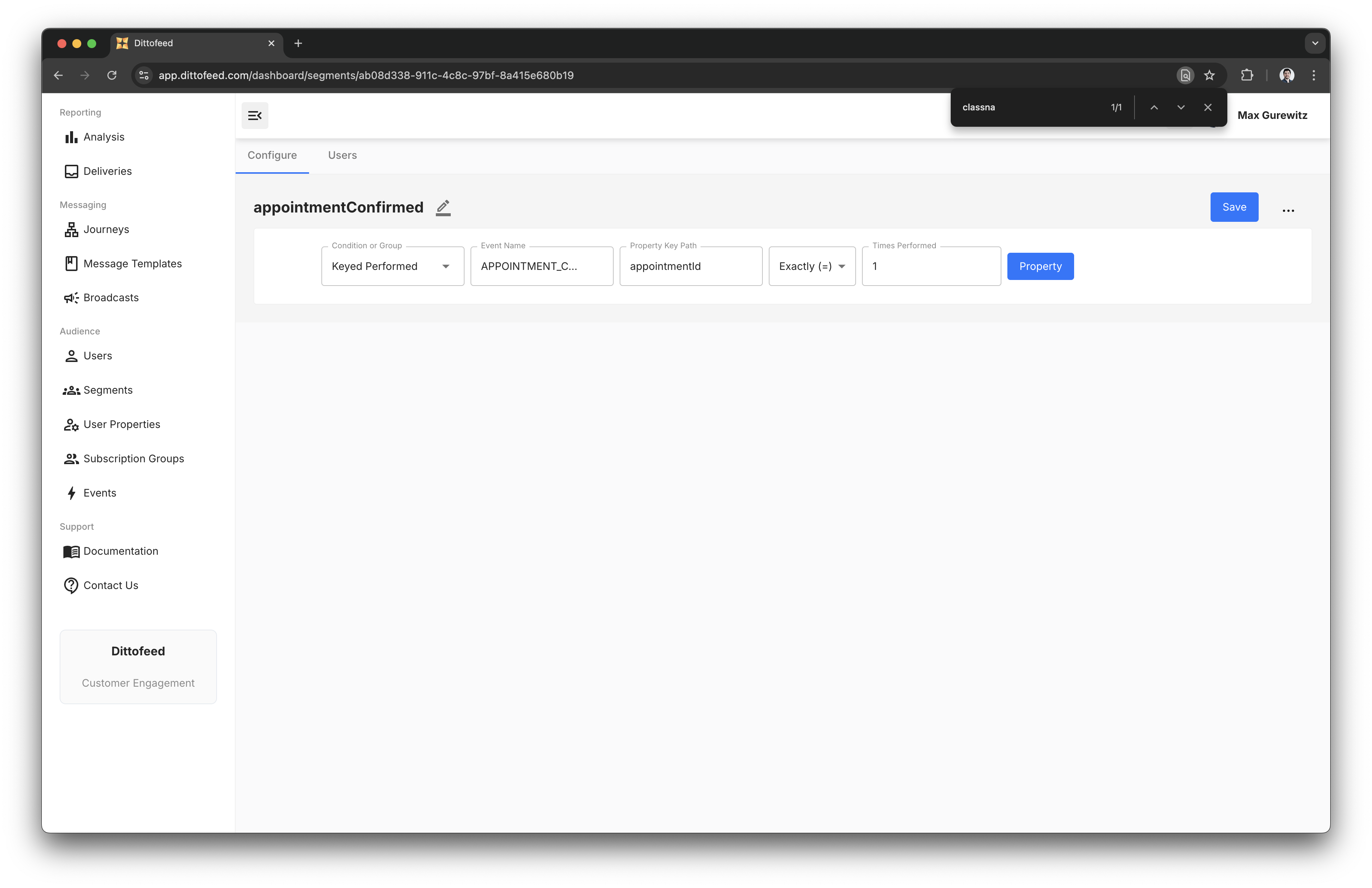 Then we'll incorporate this segment into a wait-for node, to wait for the user to confirm that they have attended the appointment.
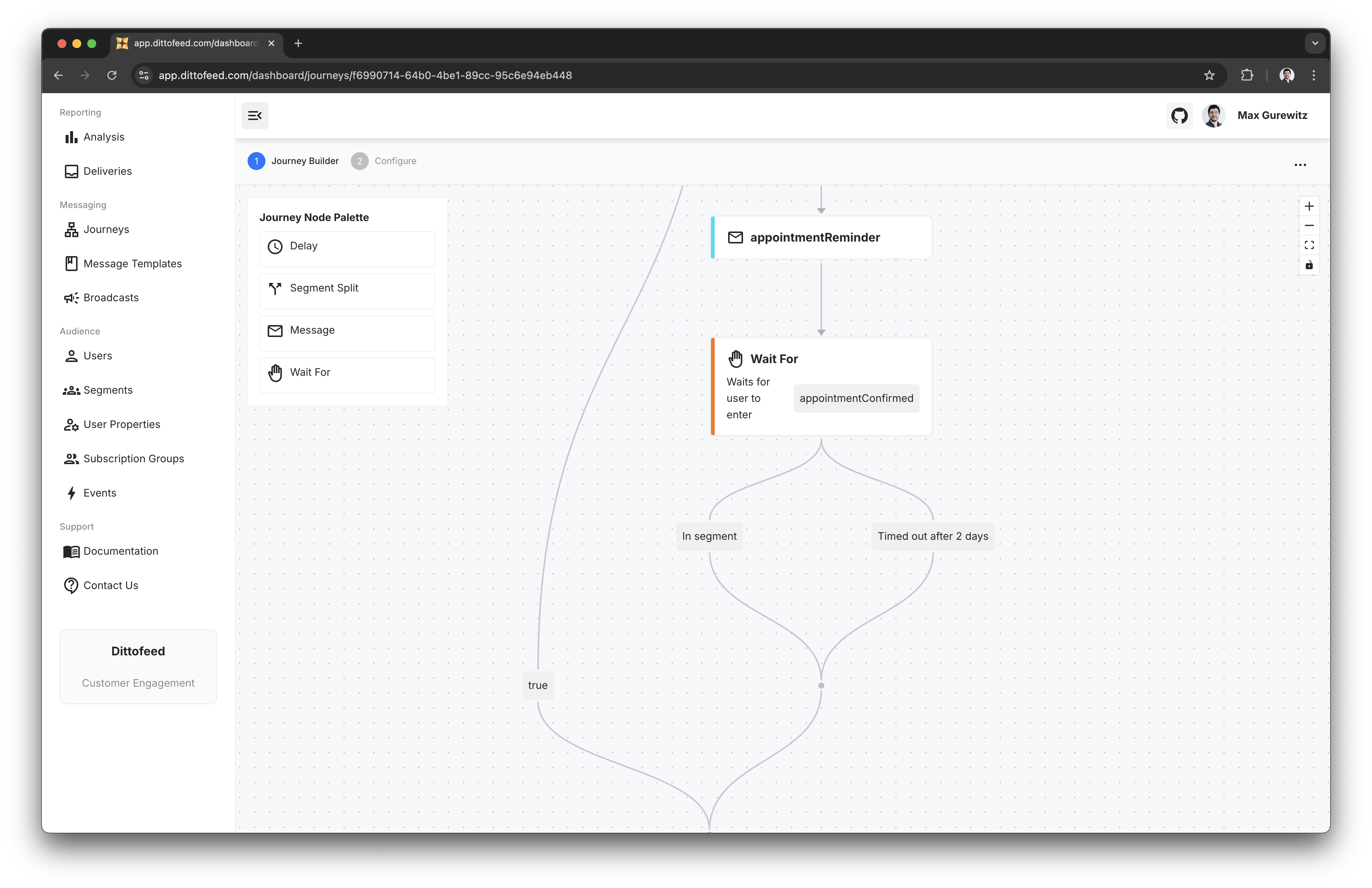 Finally, we'll create a message node to send a thank you message to the user.